The Scheduled Messages Report provides administrators with an Account-level view of sending schedules across all Brands and Groups. The report helps audit scheduled activity and understand message distribution and scheduling across Brands and Groups.
Account Admins, Brand Admins, and Group Admins can access this version of the Undelivered Message Report.
Data reporting may experience delays. The Analytics screens will display a date and time stamp for the available data.
Data for reports retrieved in the SBT User Interface are available for the current and previous month, up to 60 days.
When retrieving reports via APIs, data are available for a full year, in 60-day batches. See SBT’s API documentation for more information.
For Brand/Group Admins with access to more than 10 Brands or Groups: Report data will be displayed for the first Brand or Group by default. Users can select others from the dropdown. A bulk view for all is not available.
Scheduled Messages Report
The Scheduled Messages Report is part of the SBT UI’s Analytics suite. To access Analytics, click the Analytics  icon in the left column.
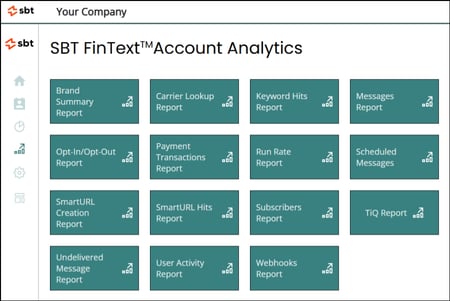
On the resulting screen, click the Scheduled Messages Report tile.
The following screen will appear:
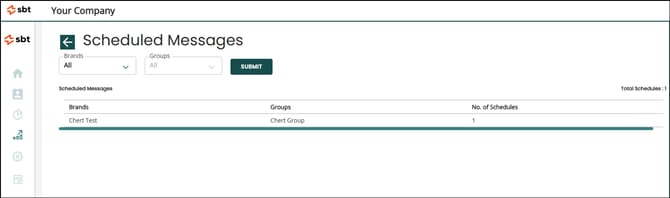
Report Data Table
| Header | Description |
| Brands | Brand names |
| Groups | Group names |
| No. of Schedules | Number of schedules available under the respective group. This reflects the number of schedules, not the number of individual messages scheduled. |
The top right corner of the table displays Total Schedules, representing the total number of schedules available for the entire account based on your access level.
Filters and Selection Options
The report includes filters for Brands and Groups, with behavior that varies depending on the number of brands and groups the admin can access.
Brands and Groups Filters
-
10 or fewer Brands or Groups:
-
The filter displays an All option by default.
-
The table shows data for all Brands or Groups.
-
-
More than 10 Brands or Groups:
-
The first alphabetical Brand or Group is selected by default.
-
The table displays data only for that Brand or Group.
-
After selecting your filters, click SUBMIT to generate the report.
Currently there is no download  option for this report.